


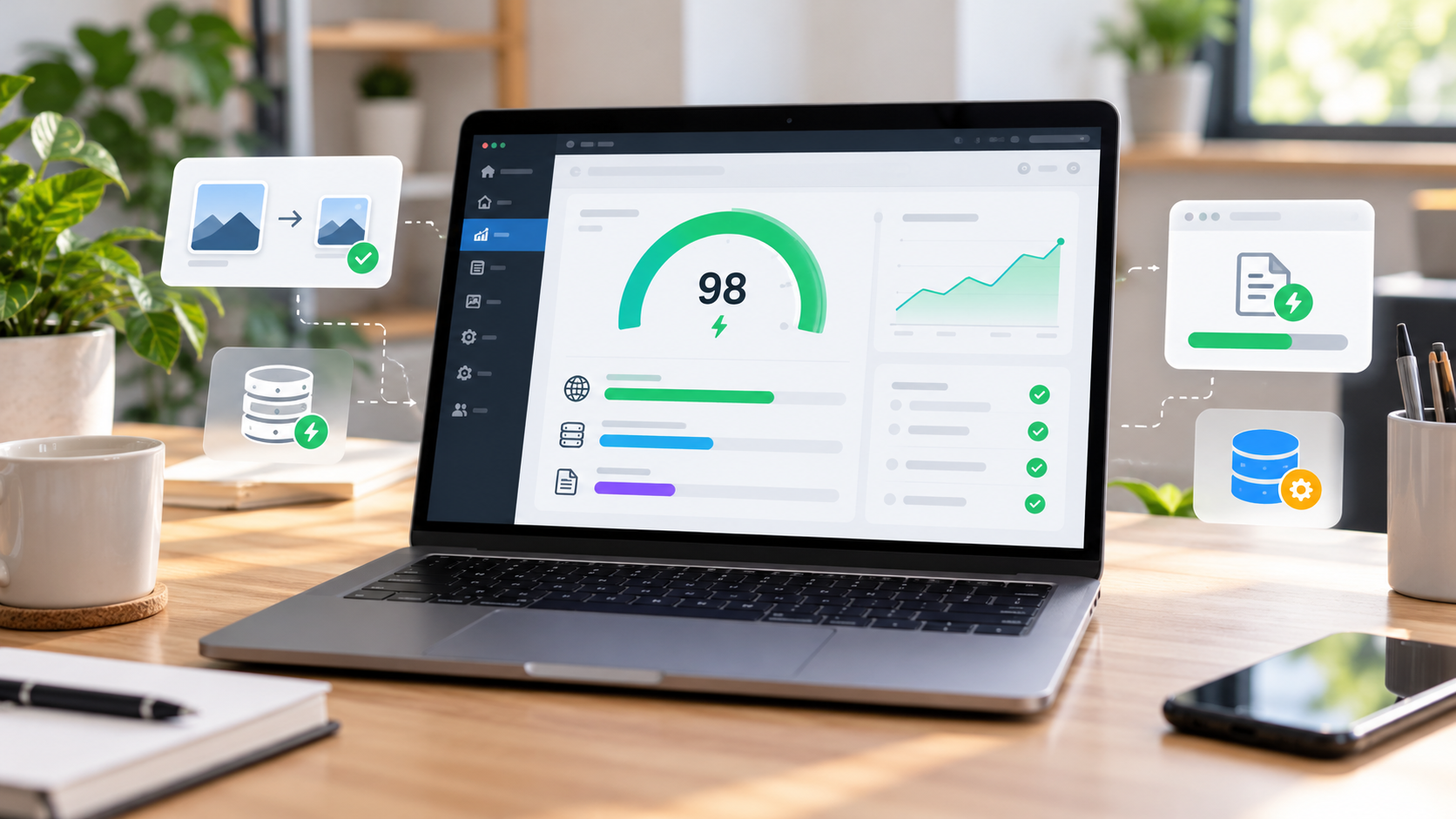
A slow WordPress website can be frustrating, especially when you’ve spent hours creating content and designing your pages. You click on your homepage, wait for it to load, and wonder why everything feels so sluggish.
The good news is that you don’t need to be a developer to fix it.
Whether you run a personal blog, an affiliate website, or a small online business, there are several practical ways to speed up your WordPress website without coding. Many of these improvements take only a few minutes and can be made directly from your WordPress dashboard.
In this guide, we’ll look at what makes WordPress slow, how to identify performance problems, and ten simple changes that can make your website faster and easier to use.
Why Is Your WordPress Website So Slow?
WordPress isn’t automatically slow. In many cases, the problem comes from how a website is set up and maintained.
For example, you might upload large images without compressing them, install several plugins that do similar things, or use a theme packed with animations you don’t really need.
Other common causes include:
- Slow or overloaded web hosting
- Large, unoptimized images
- Resource-intensive WordPress plugins
- Heavy themes and page builders
- Missing page caching
- Too many external scripts
- Outdated WordPress software
According to the official WordPress performance documentation, factors such as hosting, plugins, themes, and image sizes can all influence website performance.
The important thing is to find out what’s causing your problem before making changes.
1. Test Your WordPress Website Speed
Before installing another plugin, check how your website currently performs.
One of the easiest tools for this is Google PageSpeed Insights.
Simply enter your website URL and click Analyze. You’ll receive separate performance reports for mobile and desktop devices.
Pay attention to Google’s Core Web Vitals:
- Largest Contentful Paint (LCP): How quickly the main content appears. A good target is 2.5 seconds or less.
- Interaction to Next Paint (INP): How quickly your website responds to user interactions. Aim for 200 milliseconds or less.
- Cumulative Layout Shift (CLS): How much your page unexpectedly moves while loading. Aim for 0.1 or less.
You can learn more about these measurements in Google’s Core Web Vitals guide.
Test your homepage and at least one blog post. Sometimes the homepage loads quickly while individual articles are slowed down by images or embedded content.
Quick tip: Save your results before making changes. That way, you can see whether an optimization actually improves performance.
2. Enable Caching to Make WordPress Faster
Caching is one of the simplest ways to improve WordPress loading speed.
Normally, WordPress may need to process information and retrieve content from its database when someone visits a page.
With page caching enabled, the website can serve a previously generated version of that page instead of repeating the entire process.
You don’t need to understand the technical details to get started.
Popular caching plugins include:
- WP Super Cache
- Lite Speed Cache
- W3 Total Cache
- WP Rocket
To install a caching plugin, open your WordPress dashboard and go to Plugins → Add New Plugin. Search for your preferred option, install it, and follow its setup instructions.
However, check your hosting settings first. Some hosting providers already include server-level caching.
Running multiple overlapping caching systems can create conflicts, so it’s better to use a setup that’s compatible with your hosting.
3. Optimize Images Without Losing Quality
Large images are a common reason blog pages take longer to load.
Imagine writing a tutorial with ten screenshots. If every image is several megabytes, visitors may have to download a surprising amount of data just to read one article.
Fortunately, image optimization is straightforward.
Start by resizing images before uploading them. A small blog thumbnail usually doesn’t need the enormous dimensions of an original camera photograph.
You can also use modern image formats such as WebP, which often provide good visual quality at smaller file sizes.
If you’d prefer WordPress to handle compression automatically, consider plugins such as ShortPixel, Imagify, or Smush.
These tools can help reduce image sizes without requiring manual editing for every upload.
Be careful not to compress images so aggressively that they become blurry. This is particularly important for tutorials where readers need to see text in screenshots.
Another useful feature is lazy loading, which delays eligible images farther down the page until they’re needed. Modern WordPress installations already support native lazy loading for many images.
One important exception: Avoid unnecessarily lazy-loading your main hero image, especially when it’s the largest visible element on the page.
4. Remove Unnecessary WordPress Plugins
Plugins make WordPress flexible, but installing too many unnecessary features can create performance problems.
For example, you might have one plugin for image optimization, another for image compression, and a third that offers the same functionality.
There’s usually no benefit to keeping several plugins that perform identical tasks.
Go to Plugins → Installed Plugins and review everything you’ve installed.
Ask yourself whether each plugin still serves a useful purpose.
If you’re no longer using a plugin, consider removing it after confirming that it isn’t needed by another feature.
Remember that plugin quality matters more than plugin count. A single poorly optimized plugin can cause more trouble than several lightweight ones.
Before disabling important plugins, create a backup and test the change on a staging website if possible.
5. Choose a Lightweight WordPress Theme
Your theme controls how your website looks, but it can also affect how efficiently pages load.
Some themes include large sliders, complicated animations, and numerous features that might be unnecessary for a simple blog.
If you’re building an informational website, a clean layout can be both attractive and practical.
Popular themes worth evaluating include Astra, GeneratePress, Kadence, and Neve.
These offer different customization options, so explore their features before choosing one.
However, don’t immediately replace your existing theme just because your website feels slow.
First, test whether the theme is genuinely contributing to the problem.
Changing themes can affect menus, layouts, widgets, and other important settings. Always create a backup before making the switch.
6. Keep WordPress, Themes, and Plugins Updated
Updates aren’t only about adding new features.
They can also address bugs, security vulnerabilities, compatibility problems, and performance issues.
To check for updates, visit Dashboard → Updates inside WordPress.
You’ll see available updates for WordPress itself, your plugins, and your installed themes.
Back up your website before applying major updates, especially if you’re running WooCommerce or using important custom functionality.
You should also check whether your hosting account is using a supported PHP version.
PHP is the language WordPress runs on, and supported versions can provide improvements in security and performance.
If you’re unsure which version to use, contact your hosting provider rather than changing server settings blindly.
7. Use a CDN for Visitors Around the World
If your website attracts readers from different countries, a Content Delivery Network (CDN) may help.
A CDN stores eligible website resources across geographically distributed servers.
For example, if your hosting server is located in Europe but someone opens your website from Asia, a CDN may deliver cached images and other resources from a location closer to that visitor.
This can reduce loading delays caused by geographical distance.
Cloudflare and Bunny CDN are two services you can explore.
Some hosting companies already include CDN functionality, so check what’s available before subscribing to an additional service.
Keep in mind that a CDN isn’t a complete solution for a slow website. It won’t automatically fix oversized images, inefficient plugins, or poor server configuration.
Think of it as one useful part of your overall optimization strategy.
8. Keep Your Homepage Clean and Simple
It’s tempting to fill your homepage with everything: large banners, sliders, social media feeds, animations, pop-ups, and promotional widgets.
Unfortunately, these features can add unnecessary loading work.
For most blogs, a simpler homepage is often easier for visitors to navigate.
Start with a clear headline, straightforward menu, and a manageable selection of your best articles.
Use optimized featured images and avoid autoplay background videos unless they serve a meaningful purpose.
Remove widgets that don’t genuinely help your readers.
Your website doesn’t need dozens of moving elements to look professional. Good typography, useful content, and a consistent layout can make a stronger impression.
9. Improve Mobile Website Performance
Your website might load quickly on a laptop but feel completely different on a smartphone.
Mobile devices can have slower processors and less reliable internet connections, making heavy pages more difficult to use.
Open your website on an actual phone and check how it behaves.
Can you read the headline without waiting too long? Does the navigation menu open smoothly? Are the images displayed correctly?
Also, look for pop-ups or advertisements that cover important content.
If your website uses large images or complex animations, consider simplifying their presentation on mobile screens.
A mobile-friendly website should be easy to read, navigate, and interact with.
Remember, optimizing for mobile visitors isn’t just about achieving a better PageSpeed score. It’s about making your content accessible to real people using different devices.
10. Check Your Web Hosting Performance
Sometimes you’ve done everything right, but your WordPress website still feels slow.
You’ve optimized images, enabled caching, and removed unnecessary plugins, yet pages continue to take too long to respond.
At this point, your hosting environment deserves attention.
Entry-level shared hosting can work well for a new blog, but performance depends on how the provider manages server resources.
If your hosting account regularly reaches its resource limits, that may affect loading speed.
Ask your provider to investigate slow server response times and check whether server caching is configured correctly.
You can also open Tools → Site Health in WordPress to review useful information about your website’s environment.
Don’t assume that the most expensive hosting plan is automatically the best.
A reliable provider with resources suitable for your website is more important than paying for features you don’t need.
Common WordPress Speed Optimization Mistakes
While trying to improve WordPress speed, beginners sometimes make changes that create new problems.
Here are a few mistakes worth avoiding.
Installing multiple caching plugins: Overlapping optimization features can interfere with one another.
Trying to achieve a perfect PageSpeed score: A score of 100 isn’t necessary for providing a good user experience.
Ignoring image quality: Over-compressed images can make tutorials difficult to understand.
Making too many changes at once: If your website breaks, it becomes difficult to identify which setting caused the problem.
Skipping backups: Always protect your website before making significant changes.
The safest approach is to make one improvement at a time, test it, and move on to the next issue.
Frequently Asked Questions
Can I speed up WordPress without coding?
Yes. You can improve WordPress performance by optimizing images, enabling caching, removing unnecessary plugins, updating software, and simplifying your website design. Most of these tasks can be completed through your WordPress dashboard.
What is the best free WordPress speed optimization plugin?
There isn’t one plugin that’s best for every website. WP Super Cache is an option for page caching, while LiteSpeed Cache can be useful with compatible hosting. Choose a solution based on your server and existing setup.
Why is my WordPress website slow on mobile?
Common causes include oversized images, heavy JavaScript, complicated page layouts, and slower mobile connections. Testing with PageSpeed Insights can help identify specific problems.
Does website speed affect Google rankings?
Website performance is relevant to Google’s page experience considerations, but speed alone doesn’t guarantee higher rankings. Helpful content, relevance, and other SEO factors also play important roles.
How often should I optimize my WordPress website?
Check performance after major theme, plugin, or design changes. Reviewing your website monthly is also a useful habit, particularly if you regularly publish new content.
Final Thoughts
A faster WordPress website doesn’t have to mean complicated technical work or expensive software.
Start by testing your website to understand what’s slowing it down. Then focus on practical improvements such as image compression, caching, plugin cleanup, and simpler page layouts.
You don’t need to make every change in one day. In fact, testing one improvement at a time is usually the smarter approach.
Remember that the goal isn’t simply to get a perfect score from a speed-testing tool. It’s to create a website that loads comfortably, works reliably, and makes life easier for your visitors.
Start with the biggest problem, fix it, and measure the difference. Small, thoughtful improvements can add up to a noticeably better WordPress experience.